Farhelm docs, Using Farhelm (draft)
Start a session
Choose where a session runs and what it runs, reuse a setup you launched before, and start an agent in a fresh clone of a GitHub repository.
Every session starts from the session launcher. Open it with + (New session) at the top of the session list, or Cmd+N on a Mac. It is one form rather than a wizard: say where the session runs and what it runs, then press Launch. Most of the time Farhelm has already filled in the where, and you only pick the agent.
The launcher at a glance
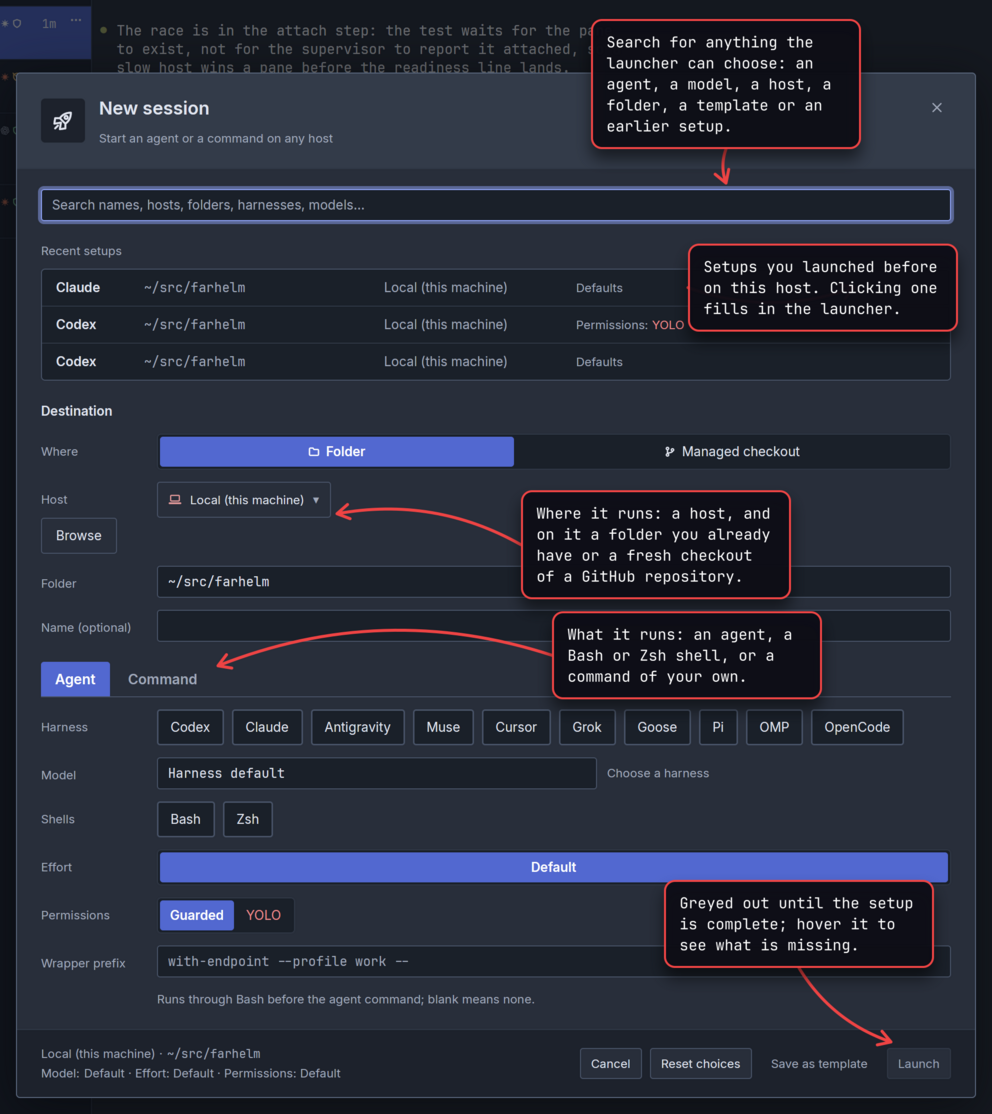
Everything in the launcher can be chosen by hand or from the search box at its top; the two are the same choices. The footer sums up what Launch would start, so you can check the host, directory, model and permissions in one place before you press it. Cancel or Escape closes the launcher without starting anything, and Reset choices puts the permissions and wrapper prefix back to what you used last.
Save as template keeps the choices you made under a name, so you can apply them again later or start them with a single key; Launch templates covers it. The launcher you get from a session's Clone, Replace with or Restart with is the same one, filled in from that session (Stop, restart, and resume).
After you press Launch, the launcher gets out of the way while the host starts the session, and you can keep working in other sessions meanwhile. If the start takes more than a couple of seconds, a small note at the bottom of the window says what is launching where and for how long. The new session opens as soon as it starts, unless you have clicked or typed somewhere since you pressed Launch: then Farhelm leaves you where you are, adds the session to the list and briefly says it started.
Choose where it runs
A session runs in one directory on one host. Host starts on the host of the session you have open, or on Local (this machine) when none is open.
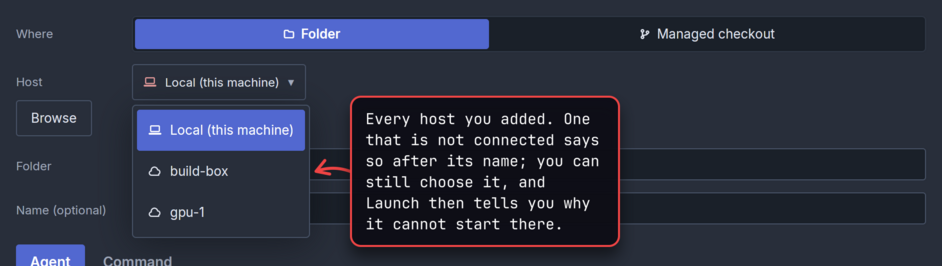
Folder is the directory the agent starts in. Type a path on that host, either absolute or starting with ~ for
your home directory there. The launcher starts on the open session's directory, or on the one you last used on the
chosen host, and changes it when you change the host, unless you typed or picked one yourself. In the field's list,
Home is ~ on the chosen host, and Local home is ~ on this machine, which also switches the host to it.
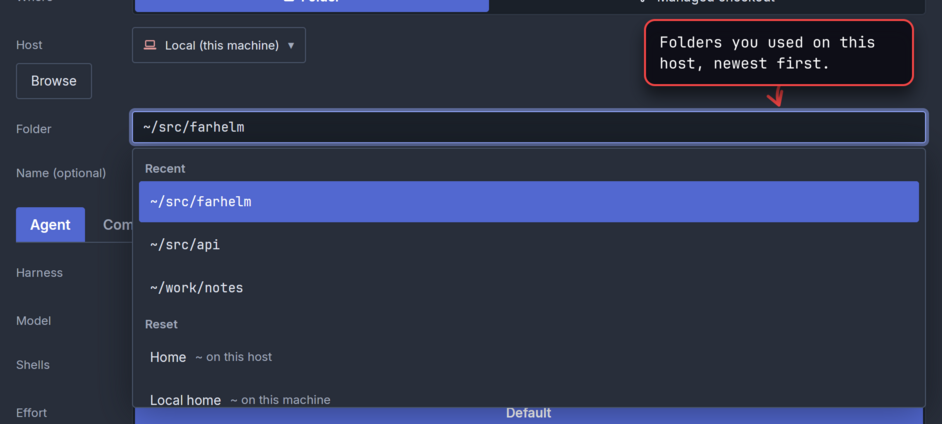
Browse lists the directories under the path you typed, one level at a time, read from the host itself. As you type, the launcher checks that the directory exists on the host and says so under the field when it does not; When a launch fails has an example.
Name is optional. Leave it empty and Farhelm names the session after its directory; you can rename it later either way.
Where chooses between a directory you already have and a Managed checkout, a fresh clone of a GitHub repository that Farhelm makes for the session; Start from a managed checkout covers that.
When you have a host that can run containers, or a Tensorlake account set up, a Runs on switch above Host also offers New container or New sandbox: the session then gets a disposable machine of its own, made from a recipe when it starts. Container sessions and Give each session its own sandbox explain both.
Choose the agent and how it runs
The Agent tab starts an agent Farhelm knows, with its launch choices, or a plain Bash or Zsh shell.
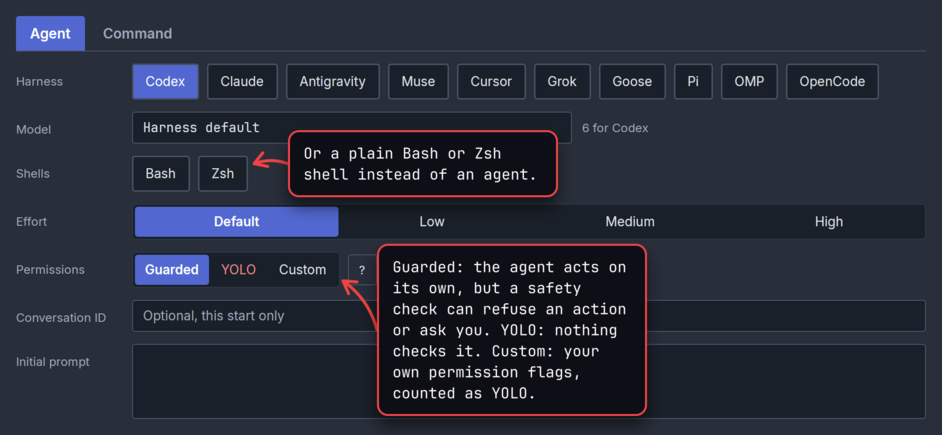
Only the choices the chosen agent offers appear; Grok, for example, has no model or effort choice. Supported agents says what each agent offers, and Permission modes what Guarded and YOLO mean for each one and which flags Farhelm passes. The ? beside the permissions explains them in the launcher too.
Guarded is the default for every agent that has a guarded mode. After that, the launcher starts on the permission mode you chose for your last launch. If switching to another agent would make the permissions more dangerous (from Guarded to YOLO, say, because the new agent has no guarded mode), a red banner across the top of the launcher says so, with Undo.
Wrapper prefix runs the agent through a command of your own, for example one that sets up credentials first. Farhelm remembers the last prefix you used with each agent. Agent wrappers explains what a prefix has to do.
For a Bash or Zsh shell, pick it under Shells. A shell has no model, permissions or first message.
The Command tab runs any command line you type, through Bash on the host. Use it for an agent Farhelm does not know, or to start one it knows in your own way.
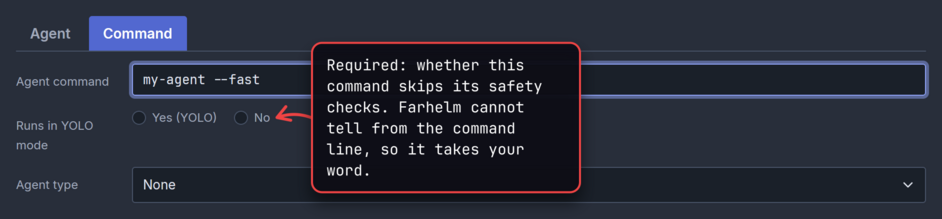
Custom commands explains its fields, including how to let Farhelm follow and restart the agent the command runs.
Continue a conversation you know
To pick up a conversation the agent already has, from a session you started outside Farhelm for example, type its id into Conversation ID. For Pi and OMP the field is Session file, and for Goose and OpenCode Session ID.
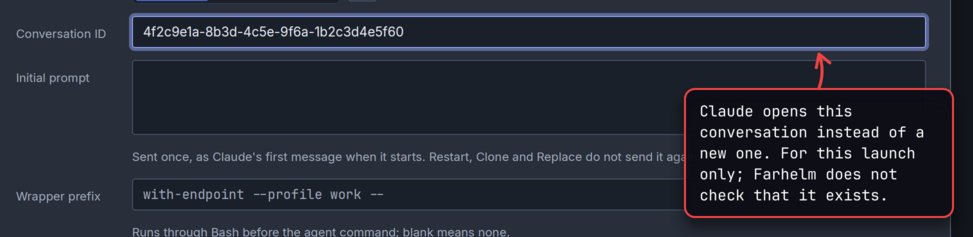
The id is used for this launch only: it is not saved in templates or recent setups, and a later Clone starts a fresh conversation. Farhelm passes it to the agent as you typed it and does not check that the conversation exists; what happens with an id the agent does not know is up to the agent. Goose, Cursor and OpenCode do not tell Farhelm which conversation they are in, so a session started this way cannot be restarted into it later; the launcher says so under the field. The field is not offered for a new managed checkout or on the Command tab.
Supply the first message
Initial prompt sends a first message to the agent as it starts, so it gets to work without you typing into its terminal. Enter starts a new line in the box rather than launching.
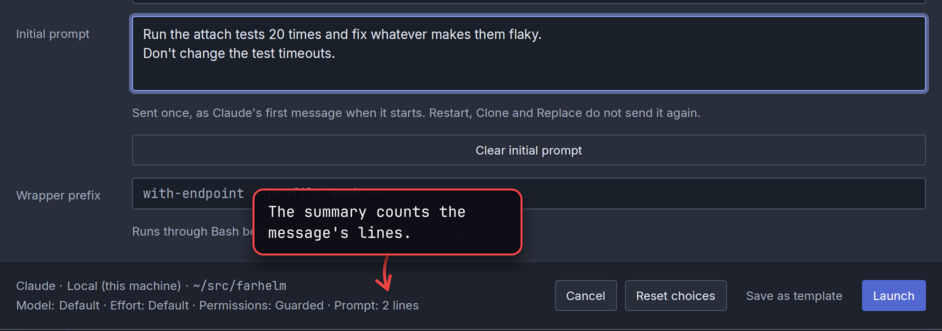
The message is sent once. Restart, Clone and Replace never send it again, and it is not part of what the session remembers about its launch. A template can hold a first message that every session started from it receives. Goose, Pi, the shells and the Command tab do not offer the box.
Confirm a YOLO launch
Every host starts out asking before a YOLO launch, except a new container or sandbox, which is disposable. On a host that asks, Launch on a YOLO setup brings up a question instead of starting the session.
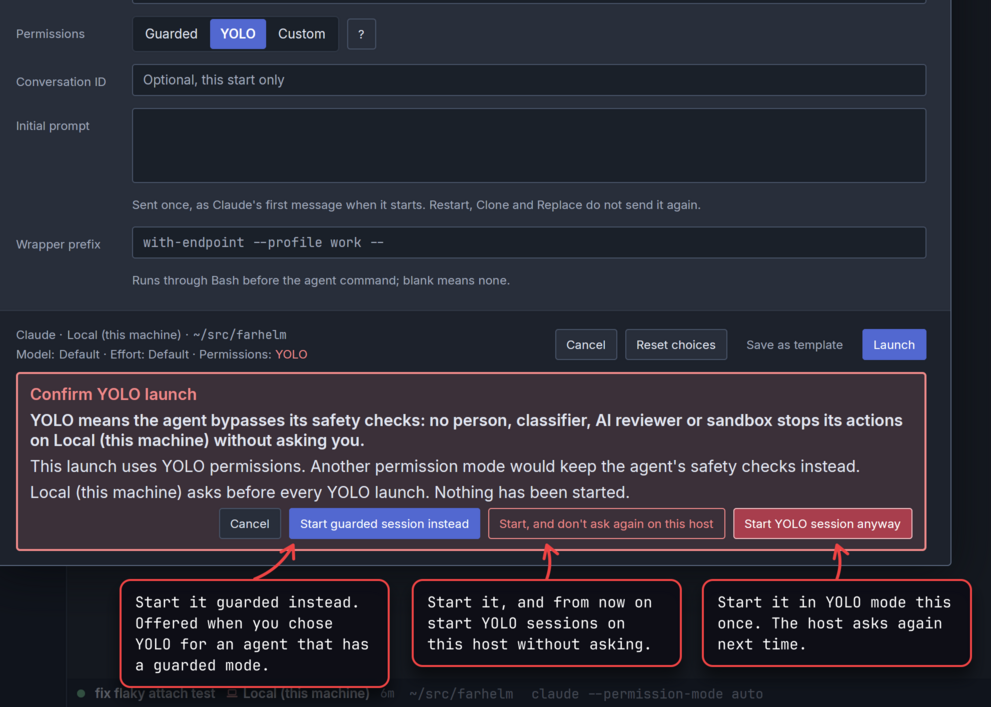
The question names the host and says why this launch counts as YOLO. A launch counts as YOLO when you chose YOLO or Custom permission flags, when the agent has no guarded mode at all (Pi and OpenCode, and Goose unless you choose another mode), when it uses Cursor's own setting, which Farhelm cannot check, or when a command says it runs in YOLO mode. Cancel, where the keyboard starts, starts nothing and leaves your choices as they were.
Start, and don't ask again on this host changes the host's own setting, the same switch as Start YOLO sessions without asking in its host settings, where you can turn the question back on. Restarting a YOLO session never asks again, since you answered when you started it; Clone, Replace with and Restart with do ask when the new setup is YOLO. Agents that start sessions on your behalf follow their own rules: on a host that asks, an agent cannot start a YOLO session at all (Approve what agents do).
Launch a setup you used before
The launcher remembers the setups you launched on each host and offers up to three of them under Recent setups, the ones you use most first.
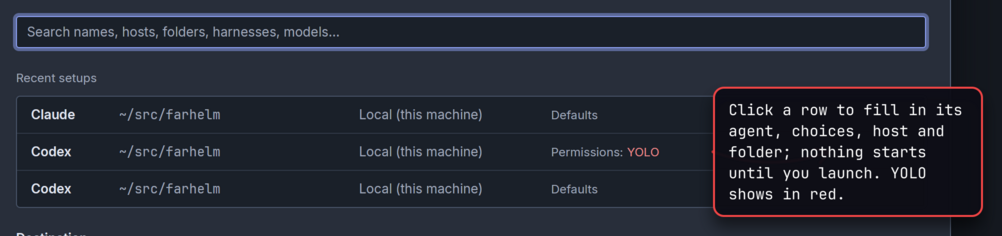
The list follows what you have already chosen: pick Codex and only Codex setups remain, pick a directory and only setups in that directory remain. When nothing matches, the list disappears. A row fills in the agent, its choices, the host and the directory or repository; pressing Enter on a row, instead of clicking it, also launches it. A setup in a new container or new sandbox names its recipe instead of a host, and starts a new one.
Search finds every remembered setup, not only the three in the list, and the Folder field's list holds up to eight directories you used on the host.
Search instead of clicking
Type into the search box at the top of the launcher to find any choice it offers, and press Enter to take the
highlighted one. The box clears, so you can type the next word: claude, Enter, api, Enter picks Claude and the
~/src/api directory.
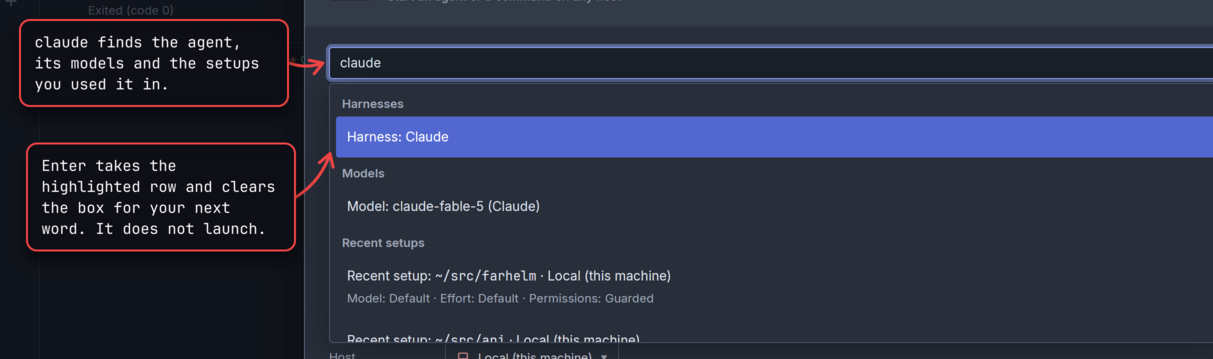
Search matches agents and shells, models of the chosen agent, efforts, yolo and guarded, hosts, directories you
used and earlier setups. Text that matches nothing offers Set session name, so typing a name and
pressing Enter names the session. When the text would match something else, start it with name::

The other prefixes narrow a search the same way: host:, folder:, harness:, model:, effort:, perms: and
recent: look only at that kind of choice, tl: lists your launch templates, and
gh:owner/repo starts a managed checkout of that repository.
Enter in an empty search box launches, if the setup is complete; if it is not, the launcher says what is missing under
Launch. Typing bash or zsh and pressing Enter twice is the quickest way to a plain shell.
Start from a managed checkout
A managed checkout is a clone of a GitHub repository that Farhelm makes for a session, in a new directory of its own. It suits work you want to keep apart: each session gets a clean clone to change, and Farhelm puts it in the trash once the last session using it is deleted.
Under Where, choose Managed checkout, then type the repository as owner/repo and choose it from the list. The
list also suggests repositories you started checkouts of before on this host and clones already in its checkout
directory. Typing gh:owner/repo into the search box does the same.
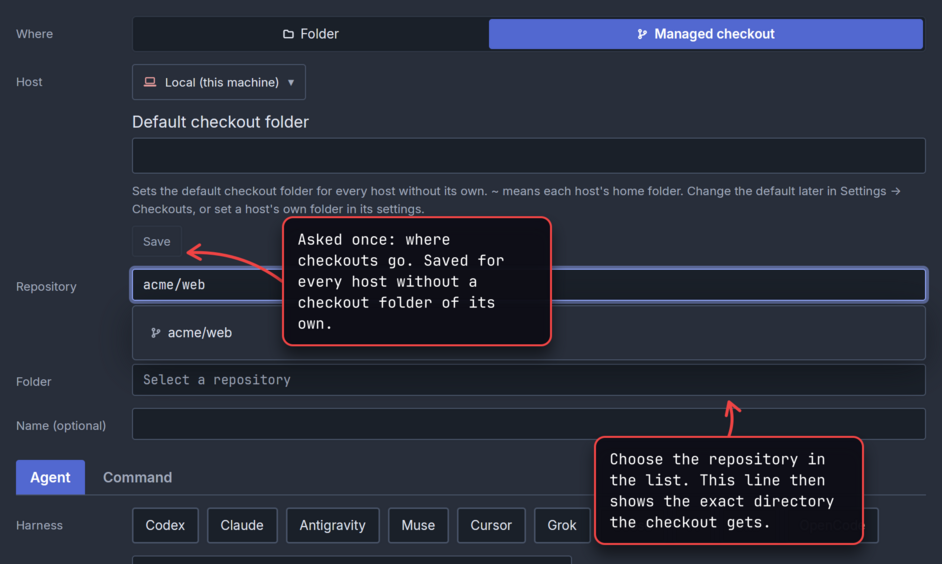
Before Launch becomes available, the launcher shows the exact directory the checkout will get. Without a name,
Farhelm picks the next free number after the repository's name (web-1, web-2 and so on for acme/web) and names
the session the same. With a name, the directory is the repository's name followed by the session's name in lowercase,
with hyphens for spaces (web-fix-login for Fix login), and a name that is already taken is refused rather than
numbered. If another launch takes the
directory first, the launcher shows the new one and waits for you to press Launch again.
Checkouts go into one directory per host, which you choose. The first time you start one on a host without it, the launcher asks for the directory and saves it as the default for every host; Checkout management says where to change it.
The clone uses your own Git credentials on that host, and it happens in the session's terminal: you see the clone, any post-clone command, and then the agent start, and you can answer a credential prompt there. If a step fails, the later ones do not run, and the session stays so you can read what happened and delete it.
In a new container or new sandbox, the checkout is cloned inside it, and deleting the session deletes the checkout for good, without the trash.
Prepared checkouts
With Keep a checkout ready for faster launches on, which it is unless you turn it off in Settings → Checkouts, Farhelm keeps one spare clone of each repository on each host. After a checkout's launch, it prepares the next spare in the background, at low priority and through your login shell, without asking for credentials. The next launch of that repository then updates the spare and moves it into place instead of cloning from scratch, which matters for large repositories. The session's terminal says it is updating an earlier checkout.
A prepared checkout has the same files and the same GitHub origin as a fresh clone, but it is not identical to one:
- Git's history of the checkout (the reflog) shows the earlier clone and the update, and
FETCH_HEADandORIG_HEADexist. - Files that did not change keep their older modification times.
- Objects from branches deleted upstream can linger until Git cleans them up.
- Git hooks and checkout filters, Git LFS included, ran when the spare was made, in another directory. At launch they
run only for the update, and
post-mergeruns rather thanpost-checkout.
When the spare cannot be used, Farhelm clones from scratch instead: for example when the branch it holds was deleted or
rewritten upstream, or, with Git 2.48 or later, when the repository's default branch changed. The spares take disk
space, one clone per repository and host, in a hidden .farhelm-spares directory inside the checkout directory. Turning
the setting off affects future launches: each repository's spare is discarded at its next launch on that host, and
unused spares go after 30 days in any case.
Trust in managed checkouts
Claude, Codex and Muse ask whether to trust a directory they have not seen before, and every managed checkout is a new directory, so they ask at every launch. Settings → Agent trust has a switch per agent that answers for you, for new managed checkouts only and never for a directory you chose yourself:
- Codex, Muse and Pi: Farhelm starts the agent with its own option to trust the checkout (for Pi, to approve the repository's project settings and extensions), for that launch only. The agent's saved configuration is not touched.
- Claude has no such option, so Farhelm marks the checkout trusted in Claude's own settings file (normally
~/.claude.json) just before Claude starts. This is best effort, and Settings explains its caveats before you turn it on.
All four are off until you turn them on, and apply to every host. Trusting a checkout lets the repository's hooks, settings and commands run as if you had answered yes yourself, so turn them on only for repositories you trust. The switches affect launches made after you change them; a plain Restart or Replace keeps what the session started with.
While the switch is off and Claude, Codex or Muse is asking, a note above the session's terminal says Farhelm can answer for you. Settings (for Claude, Settings and caveats) opens the switch, Don't show again stops the note for that agent (Settings can bring it back), and × hides it this once.
Checkout management
Settings → Checkouts holds the Default checkout folder, which applies to every host without its own, and a
Post-clone command that runs in each new checkout after cloning and before the agent starts, on every host. A host's
own checkout directory is in its host settings. ~ means each host's own
home, and a missing directory is created on first use. Changes apply to new checkouts; existing ones stay where they
are. Keep the checkout directory somewhere only you can write to.
A checkout belongs to every session that works in it, including sessions started later in it or in a directory inside
it. Clone of a session in a checkout starts a fresh checkout of the same repository, while Replace with keeps
working in the existing one unless you choose Managed checkout again. When you delete the last session using a
checkout, Farhelm moves it, uncommitted work included, into a hidden .farhelm-trash directory in the checkout
directory. Nothing is freed until you empty it from the trash button above the session
list, which also shows where to copy work out of it first. If
Farhelm cannot move a checkout safely, the session is still deleted, and Farhelm tells you which directory it left
behind and stops managing it.
To make clones faster, each host also keeps a cache of the repositories it has cloned, inside Farhelm's own state on that host. Your checkouts do not depend on it, and a repository's cache is removed after 30 days without a checkout.
When a launch fails
When the host refuses a launch, nothing is started: the launcher comes back with your choices as they were, and the reason under Launch, starting with Not launched.
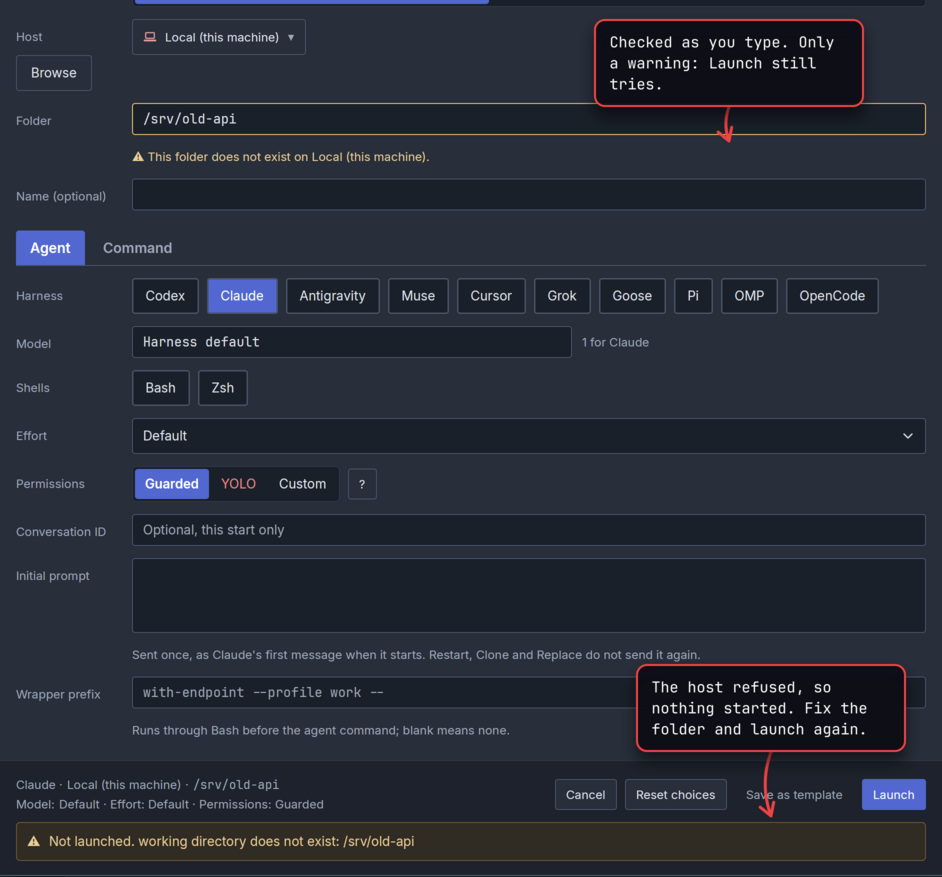
Common reasons are a directory that does not exist on the host, a host that is not connected, and a Tensorlake sandbox that is suspended, which you resume in Hosts before launching on it. Fix what it says and press Launch again. If you had moved on to something else while the launch was out, Farhelm does not pull the launcher back over your work; a notice offers to reopen it instead.
A launch can also be accepted and then fail on the host. The session then exists, and its status in the session list
says what happened: error when the agent's program could not be started at all, or exited, with its exit code,
when it started and quit. The session's terminal shows the program's own words, such as a command not found from
Bash, or a failed clone of a managed checkout. Fix the cause and
restart or replace the session, or delete it.
Next
Launch templates save the choices you make here so you can start the same setup with one key, and Read the session list covers keeping track of the sessions you start.