Farhelm · Using Farhelm
Start a session
Choose a host, directory or managed checkout, agent, and launch options in the session launcher.
Select + (New session) at the top of the session list — or press Cmd+N on a Mac (Keyboard shortcuts) — to open the session launcher. You can also open it pre-filled from an existing session's Clone, Replace with…, or Restart with… actions (Stop, restart, and resume), or by typing a name in the quick switcher and choosing New session named "…".
A session starts in one place: choose where it runs, choose an agent (or a shell or custom command), and press Launch. If you start the same setups often, save them as launch templates.
The launcher at a glance
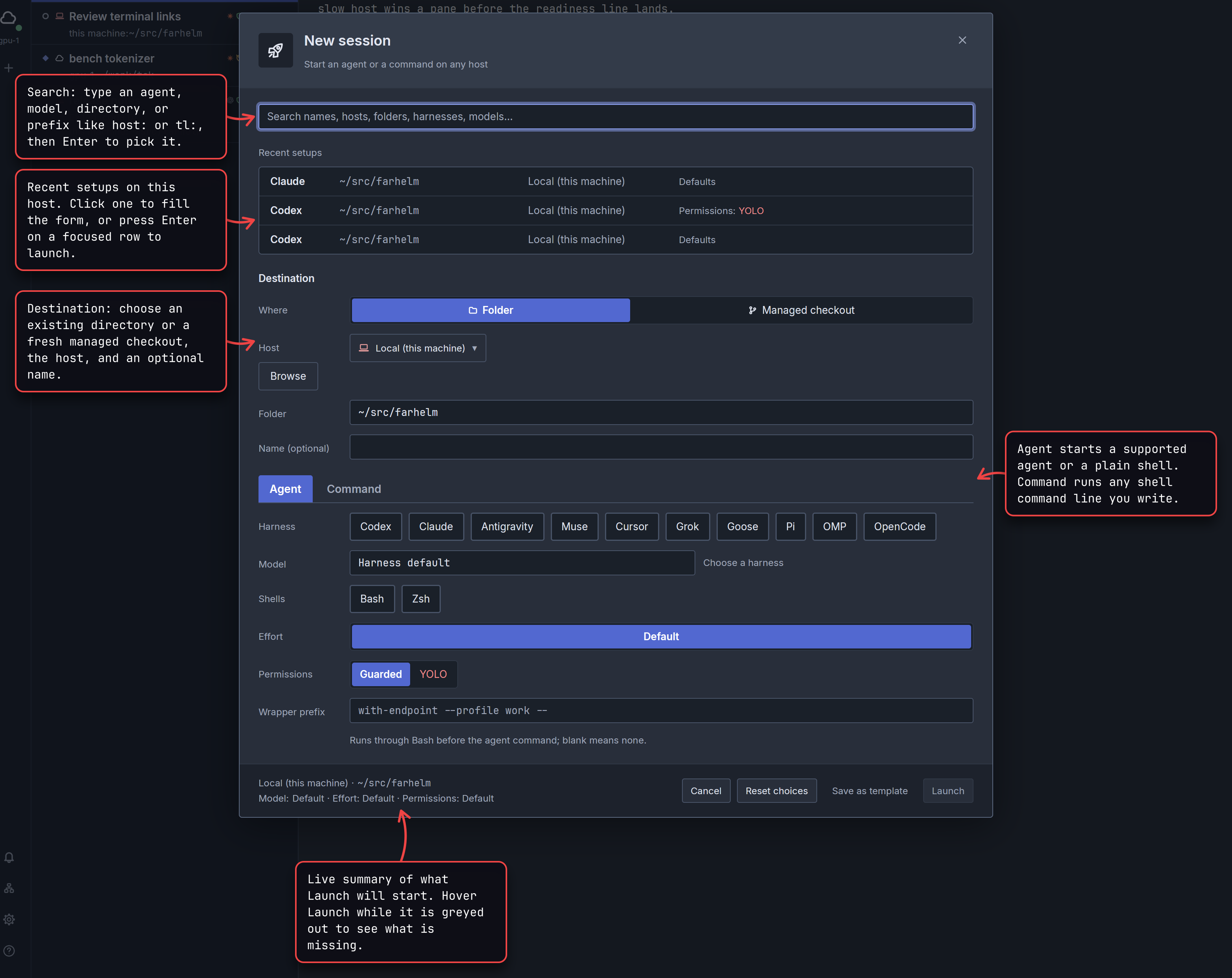
Focus starts in the search box. Once every required choice is in place, pressing Enter on an empty search box, an agent or option button, or the closed host picker launches right away; Cancel or Escape discards the draft.
When you press Launch, the launcher closes immediately so you can keep working in other sessions while the new one starts. If a launch takes more than a couple of seconds, a small status pill appears at the bottom of the window with the host name and elapsed time. If you have not clicked or typed elsewhere, Farhelm opens the new session as soon as it is ready; otherwise it adds the row to the session list and shows a brief Started pill so it does not pull focus away from what you are doing.
Choose where it runs
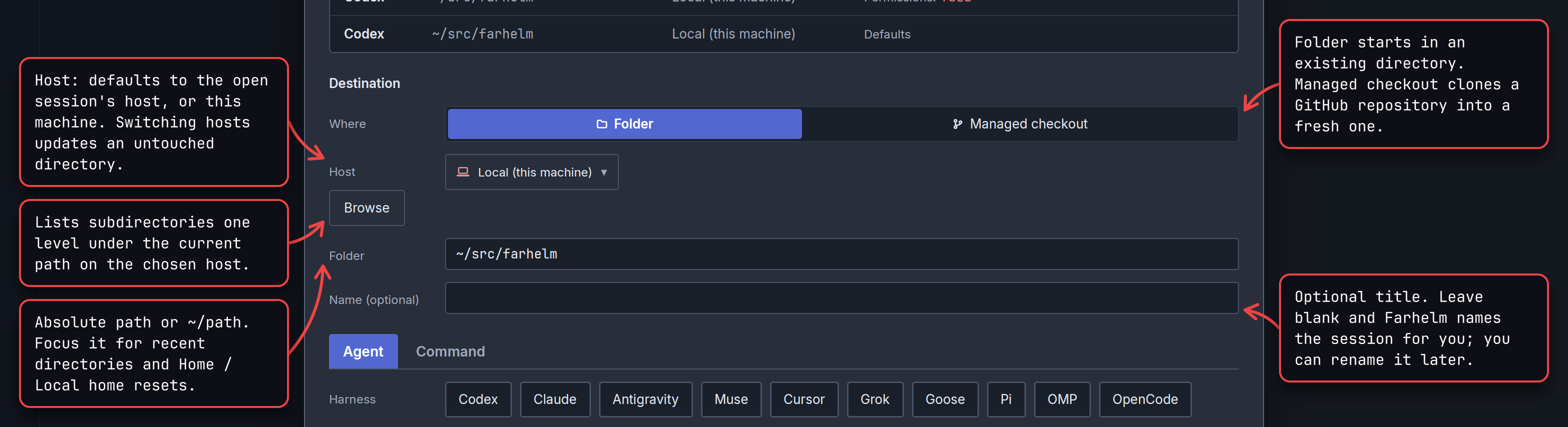
The launcher defaults to the host and directory of the session you currently have open, or this machine when none is open. When you switch to another host without having typed or picked a directory, Folder switches to that host's most recent ordinary directory launch, or ~ (which expands to that host's home directory; ~user forms are not accepted). If a host is unreachable or needs attention, it still appears in Host with its state in parentheses so you can see why it cannot launch yet.
Browse lists up to 200 subdirectories one level under the current path below the form. Choose one to set Folder, then choose Browse again to step deeper.
On a connected host, Farhelm checks an ordinary directory shortly after you stop typing and warns under Folder if the path does not exist or is not a directory. That warning is advisory — Launch stays available, and the host checks again when you start the session.
When you have a container host ready or a saved Tensorlake API key, a Runs on switch appears above Host with Existing host, New container, and New sandbox (the switch stays hidden when only existing hosts are available). Choosing New container or New sandbox replaces Host with a Recipe picker (and Container host for Podman), fixes Folder to the new environment's home directory without Browse or recent directories, and still lets you clone a managed checkout inside it.
Choose the agent and how it runs
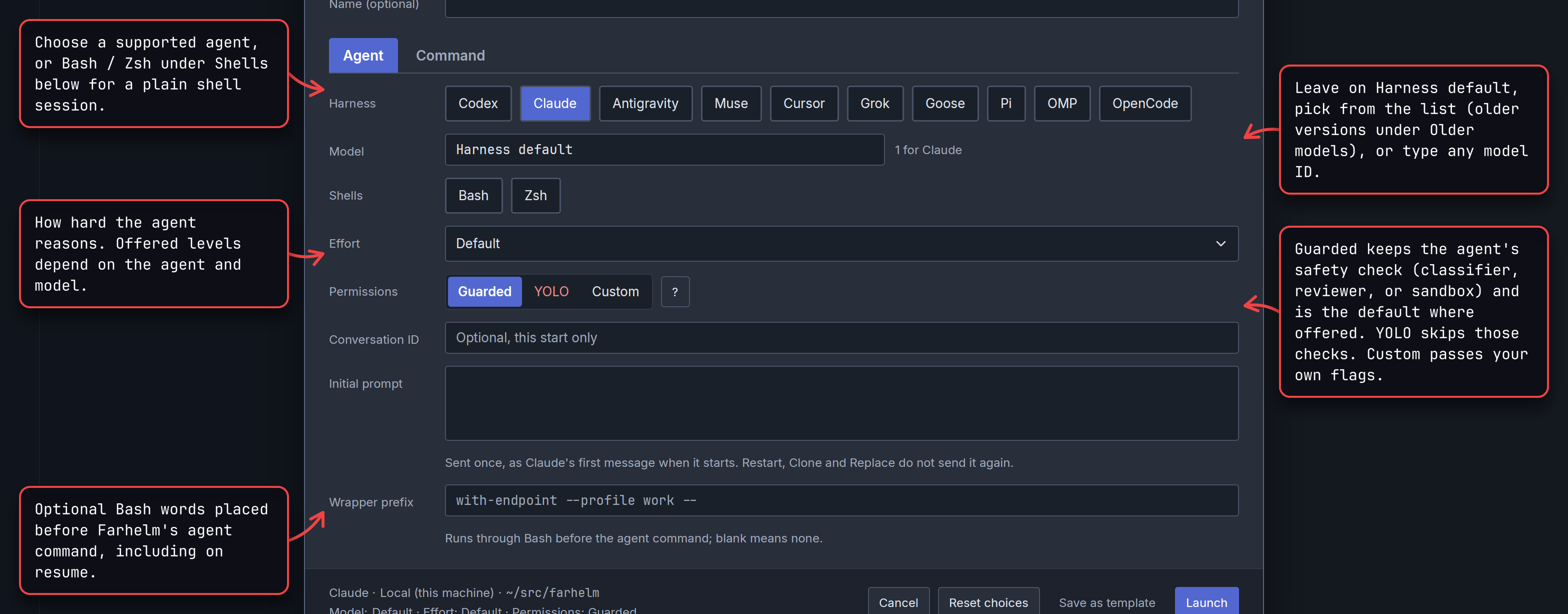
Choose a coding agent under Harness, or choose Bash or Zsh under Shells for a plain shell session. What each agent supports — models, effort levels, status reading, and restart — is mapped out on Supported agents.
In Model, typing a short family word highlights that family's latest model; choosing a model from Show every harness's models switches to the agent that owns it. Pressing Enter in Model picks the model without launching. Earlier versions of a model family sit under Older models.
Permissions starts on Guarded for every agent that offers it, unless Farhelm remembered another explicit choice from your last agent launch. Choosing an agent whose default or only mode is YOLO clears that memory instead of carrying YOLO over to other agents, and Custom is never remembered. Click ? beside Permissions for a full breakdown of each agent's flags (Permission modes). If switching agents automatically moves you to a less restrictive permission mode — for example, switching from a Guarded agent to one that only runs in YOLO mode — a red warning banner slides down across the top of the launcher naming both modes, with Undo to restore your previous draft.
Wrapper prefix is remembered separately per agent; launching with an empty field clears that agent's remembered prefix. See Agent wrappers for shell rules and why secrets do not belong in a prefix. Reset choices clears the agent, model, and effort and restores your remembered permissions and wrapper prefix.
For an agent Farhelm does not know, or a wrapper that needs {cwd} or a custom resume command, switch to the Command tab (Custom commands). Switching between Agent and Command keeps each tab's draft.
Continue a conversation you know
To start an agent directly on an existing conversation in that directory, enter its identifier in the conversation field on the Agent tab. Leave the field empty for a fresh conversation.
The field uses each agent's own name: Conversation ID for Claude, Codex, Antigravity, Grok, and Muse; Session ID for Goose and OpenCode; Chat ID for Cursor; and Session file for Pi and OMP. For Pi and OMP, the path may be absolute or relative to the session's directory; a leading ~ is refused because Farhelm passes the value literally without shell expansion.
This choice applies to this start only. Farhelm does not save it in launch templates, recent setups, or the session's reusable settings, so a later Clone starts a fresh conversation. Farhelm passes the value straight to the agent without checking whether the conversation exists, and rejects spaces, quotes, backslashes, leading dashes, and control characters.
Named conversations are not available for a new managed checkout, shells, or the Command tab. For Goose, Cursor, and OpenCode, Farhelm notes under the field that it will not capture the named conversation, so later Restart will be unavailable; for the other agents, Restart follows the conversation once the agent reports it (Stop, restart, and resume).
Supply the first message
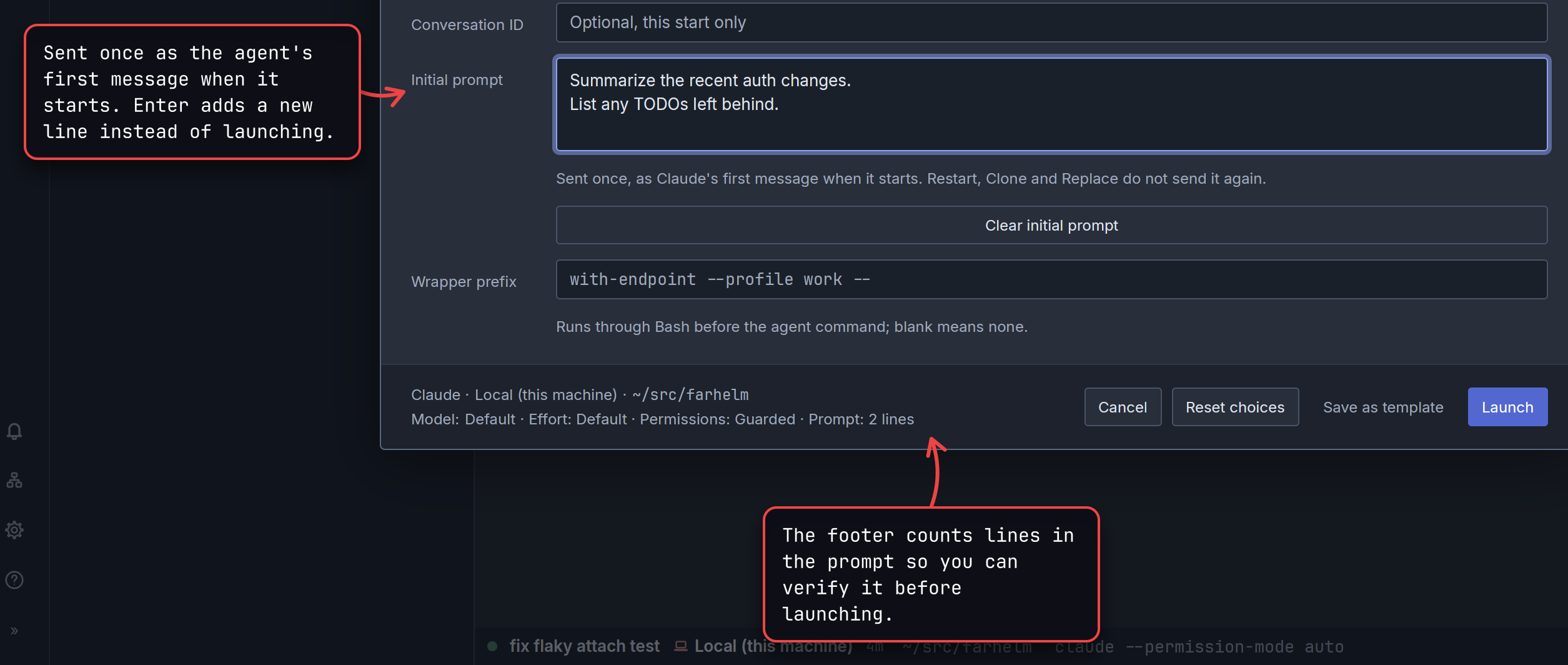
Initial prompt hands the agent its first message as part of starting it, so you do not have to wait for its terminal to open before typing. The box grows as you type and scrolls once it reaches its height limit.
The message is sent once: Restart, Clone, Replace, and Replace with do not send it again. To reuse the same opening message across sessions, save it in a launch template; you can still edit or clear it in the launcher before starting.
Claude, Codex, Antigravity, Cursor, Grok, Muse, OMP, and OpenCode accept an initial prompt. Goose, Pi, Bash and Zsh shells, and the Command tab do not offer the field, and Muse cannot combine an initial prompt with a named conversation. In a managed checkout, the prompt is delivered after cloning and any post-clone command succeed.
Confirm a YOLO launch
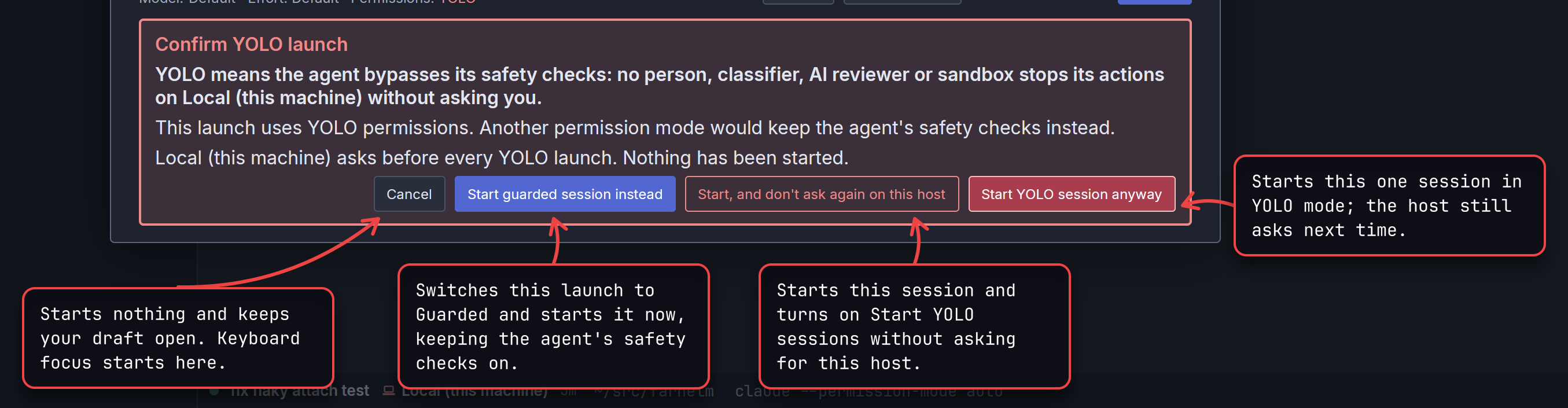
Every host starts with YOLO confirmation turned on, except new Tensorlake sandboxes. Nothing runs on the host until you answer.
Farhelm asks this question whenever a launch counts as YOLO on a host that asks: choosing YOLO, launching an agent that only runs in YOLO mode (Pi, OpenCode, or Goose at its default), supplying Custom permission flags, launching Cursor with Agent's own setting, or asserting Yes (YOLO) on the Command tab. Start guarded session instead appears only when you chose YOLO on an agent that offers Guarded mode.
Plain Restart never asks again, because it relaunches a choice you already made. Restart with, Replace, and Replace with do ask when the launch counts as YOLO on a host that asks. If you chose Start, and don't ask again on this host and want the prompt back later — or want to turn it off ahead of time — toggle Start YOLO sessions without asking in Host settings. On a host that asks before YOLO launches, agents using farhelm commands cannot start YOLO sessions or custom commands at all (Approve what agents do).
Launch a setup you used before

The Recent setups strip shows up to three setups for the chosen host (along with recent sandbox and container launches), ranked by how often you launched them and then how recently. As you choose an agent, model, effort, permission, or directory, the strip narrows to matching setups and disappears when none match or in Restart with.
Selecting a recent setup that used a managed checkout prepares a fresh clone of that repository rather than reopening the old directory. Selecting one that used a sandbox or container restores its recipe and starts a new environment. For setups you want to name, combine, or start from the keyboard, use launch templates.
Search instead of clicking
The search box at the top of the launcher lets you build a whole setup without touching the mouse: type a word, press Enter to apply the highlighted choice, and keep typing the next word. Pressing Enter on an empty search box launches.
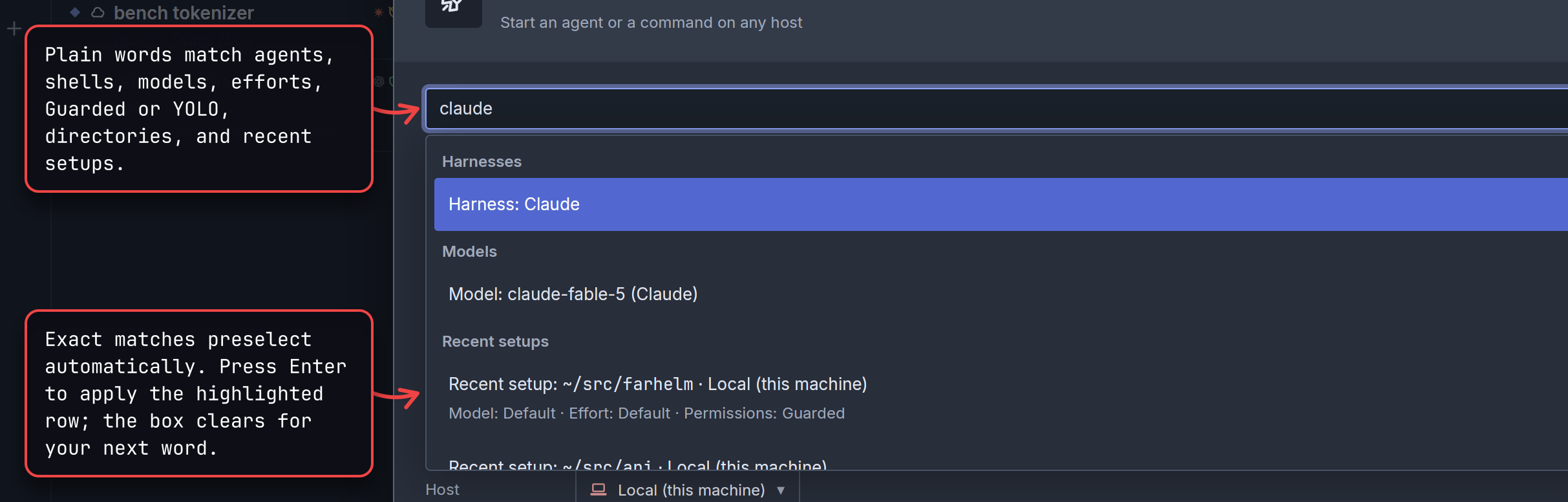
Most choices need no prefix: type claude, codex, high, yolo, guarded, a model name or short family word, or part of a recent directory. Typing bash or zsh and pressing Enter twice starts a shell session. Typing a path that starts with /, ~, or . offers Use this path and Browse this path. Text that matches nothing else offers Set session name.
Use a prefix when a category is only searched with one, or when you want to narrow results to a single kind:
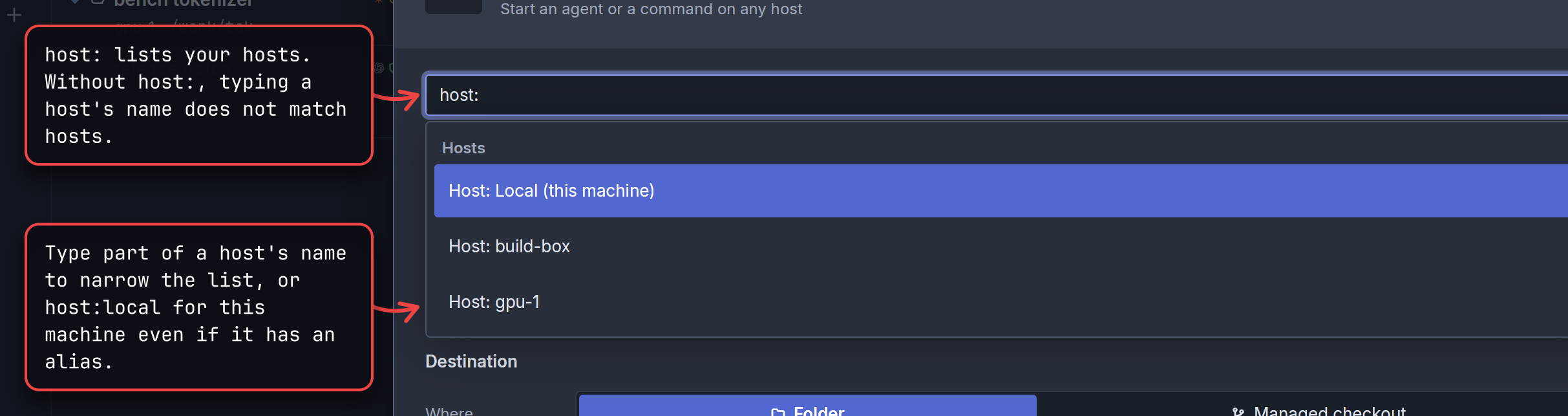
host:— pick a host (host:localalways picks this machine, even if you gave it an alias). Hosts only appear withhost:.tl:— apply a launch template;tl:on its own lists every template.gh:— start a managed checkout of a GitHub repository (gh:owner/repo).name:— set the session name, even when the text would otherwise match an agent, model, or directory.harness:,model:,effort:,perms:,folder:,recent:— limit matches to that one category (effort:defaultresets effort to the agent's default;perms:also reaches agent-specific modes such ascustom,own,approve,smart approve, andchat).
Escape or clicking outside closes the results without clearing what you typed; pressing Enter reopens them.
Start from a managed checkout
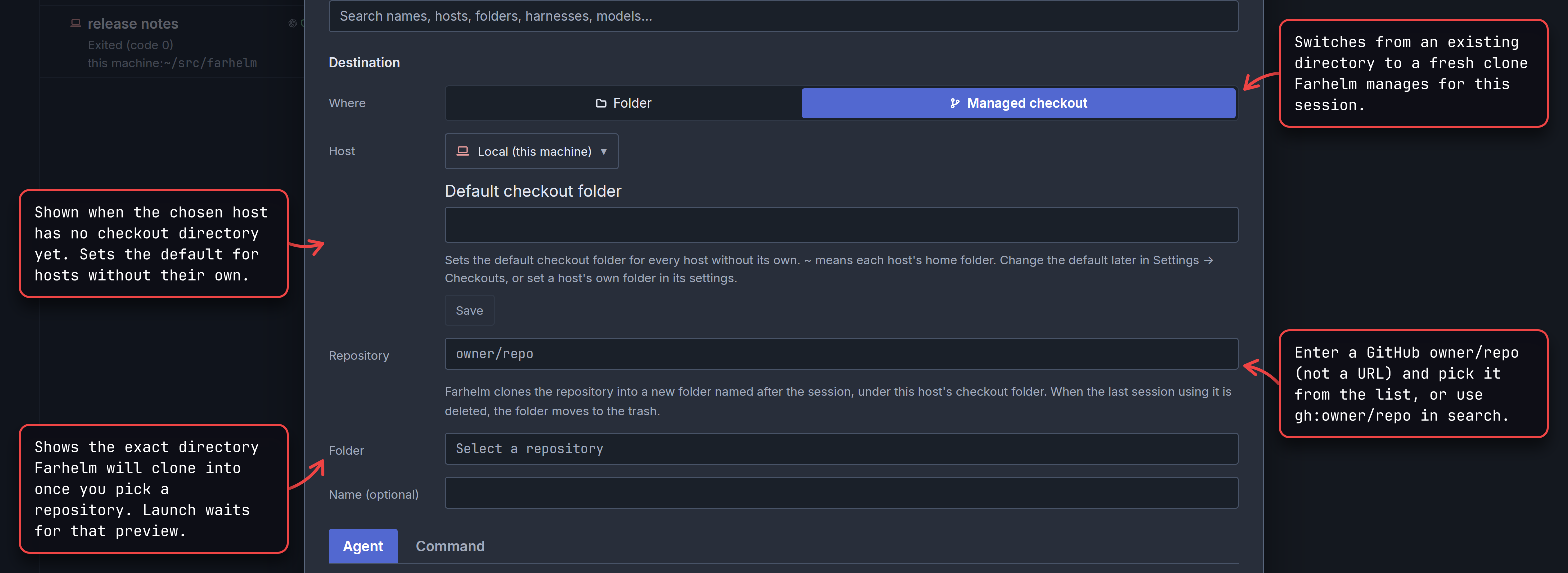
A managed checkout is a fresh GitHub clone Farhelm creates for a session under the host's checkout directory, rather than an existing directory on disk.
Enter a GitHub owner/repo pair (not a full URL or branch) in Repository, or type gh:owner/repo in search. Suggestions combine repositories you have launched on that host before with existing clones directly under its checkout directory, without contacting GitHub; even if that scan is incomplete, you can always select any valid owner/repo you type.
On an existing host, Folder shows the exact directory Farhelm will create once a repository is chosen, and Launch waits for that preview. Leave Name (optional) blank and Farhelm picks the lowest available <repo>-N (shown as placeholder text) for both the directory and the session title. Type a name and the directory becomes <repo>-<slug> (without repeating <repo>- if the name already starts with it). If another launch takes that path first, Farhelm refuses the launch and refreshes the preview so you can confirm the new path before trying again.
Cloning runs visibly inside the session's terminal — refreshing the host's local repository cache, cloning over HTTPS with your normal Git credentials on that host, running any post-clone command, and then starting the agent — so you can watch progress, answer credential prompts, or inspect failures. Each checkout is an independent Git clone with its GitHub origin; unused caches are cleaned up after 30 days.
On an ordinary host, every session working in a managed checkout (or any subdirectory of it) keeps it alive, including stopped, exited, and errored sessions. When you delete the last session using that checkout, Farhelm moves the directory — uncommitted changes included — into .farhelm-trash under the checkout directory. Use Managed checkout trash at the top of the session list to recover files or free disk space permanently. Clone of a session in a managed checkout starts a fresh clone of the same repository; Replace with keeps the existing checkout if you leave Folder unchanged, or starts a fresh clone if you switch to Managed checkout (moving the old checkout to trash if you replaced its last session).
In a sandbox session or container session, Farhelm clones the repository inside the new environment once it starts (using any GitHub token configured in its recipe), without a path preview beforehand. Deleting the last session using that checkout removes it permanently instead of moving it to the trash, and deleting the sandbox or container removes every checkout inside it.
Keep each host's checkout directory somewhere only your own account can write (not /tmp or a group-writable directory).
Prepared checkouts
With Keep a checkout ready for faster launches turned on in Settings → Checkouts (the default), Farhelm builds one spare independent clone per repository and host in the background after a managed-checkout launch finishes its clone stage. The spare lives under <checkout directory>/.farhelm-spares/<owner>/<repository> and is built through your login shell at low CPU priority without prompting for credentials.
On your next launch of that repository on that host, Farhelm takes the prepared checkout, fetches the latest commits from GitHub visibly in the session's terminal, moves its contents into the new session's directory, and fast-forwards it. Your post-clone command, optional trust setting, and agent still run only at launch in the final directory.
A prepared checkout differs from a fresh clone in a few ways:
- Extra disk space: Farhelm keeps one extra copy of each repository per host.
- File timestamps and Git metadata: unchanged files keep their modification times from when the spare was built; the reflog records both the earlier clone and the launch-time update;
FETCH_HEADandORIG_HEADalready exist; and objects from branches deleted upstream can remain until Git's own cleanup runs. - Git hooks and checkout filters: hooks and filters (including Git LFS) ran when the spare was built in its staging directory, then run again at launch only for the update in the final directory — triggering
post-mergerather thanpost-checkout.
If no spare is ready yet, or if the upstream default branch was deleted or rewritten so fast-forward cannot apply, Farhelm falls back to an ordinary clone automatically. Turning the switch off affects future launches; each repository's spare is discarded on that host's next launch of it, or after 30 days unused.
Trust in managed checkouts
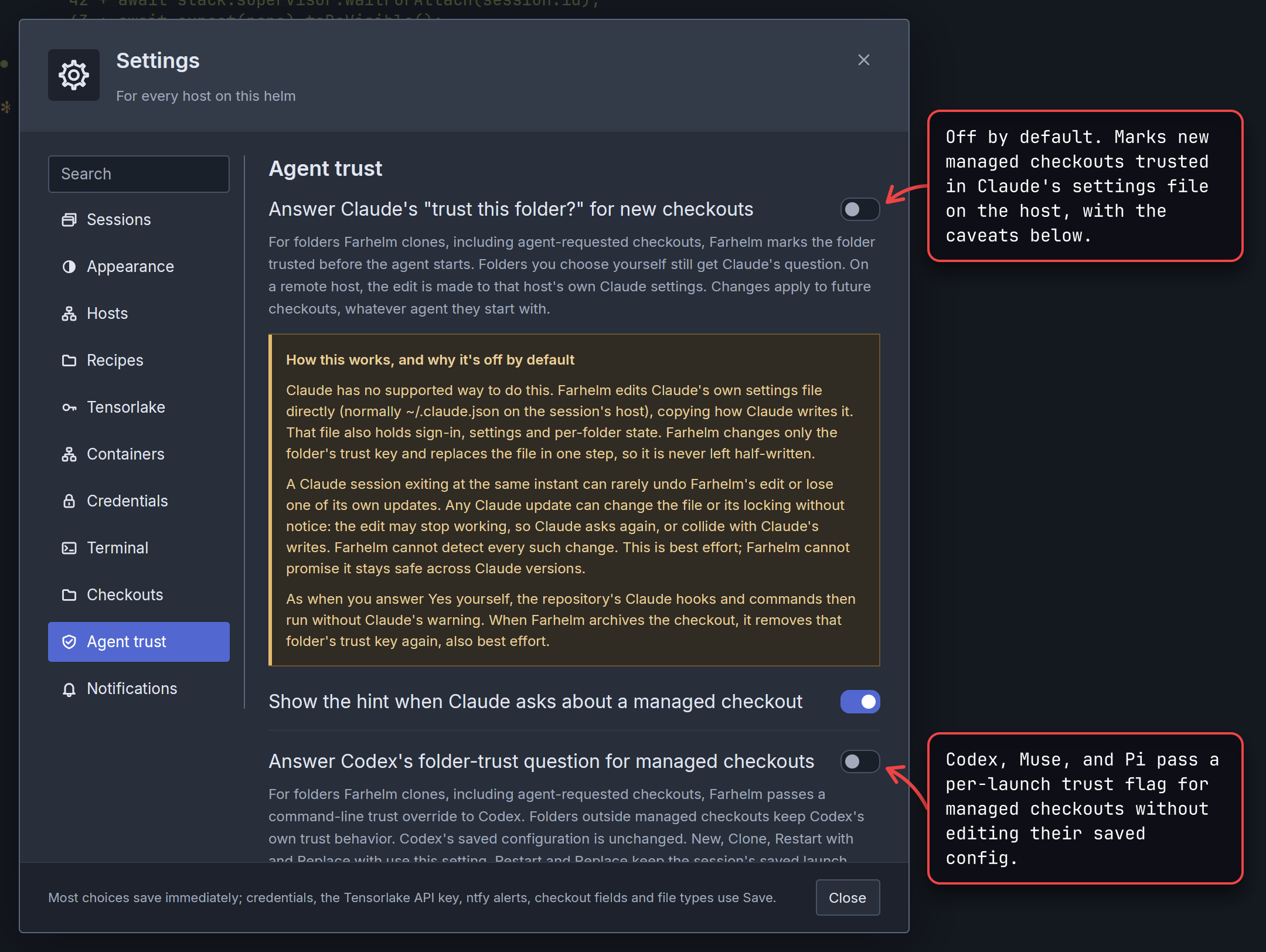
Open Settings from the gear at the foot of the navigation rail, the column of icons down the left edge of the sidebar, and choose Agent trust. Every switch starts off, because trusting a directory allows the repository's own hooks, settings, and commands to run without asking you, just as answering Yes yourself does.
These switches apply only to managed checkouts (including ones an agent requests). Directories you choose yourself always keep each agent's normal trust question.
- Codex, Muse, and Pi: Farhelm passes a per-launch trust flag without editing the agent's saved configuration (for Pi, this approves project settings and extensions, not tool actions). New, Clone, Restart with, and Replace with follow the current switch; plain Restart and Replace keep the session's saved launch.
- Claude: Claude has no supported command-line switch for directory trust, so Farhelm edits
~/.claude.jsonon the session's host right before the agent starts — for every new managed checkout, whichever agent starts in it — and removes that directory's trust key on a best-effort basis when the checkout moves to trash. Because Claude writes the same file on exit and future Claude releases may change its format or locking, this option is best effort and carries the caveats shown in the amber box in Settings; a failed edit never fails a launch or delete.
When Claude, Codex, or Muse shows its trust question inside a managed checkout while its switch is off, a note appears above the terminal with Settings (or Settings and caveats for Claude), Don't show again (reversible beside that agent's switch in Settings → Agent trust), and × to hide it for that occurrence only. Pi has no hint band. Agents that never ask about directory trust need no switch, and Cursor and Antigravity have no trust switch in Farhelm (Supported agents).
Checkout management
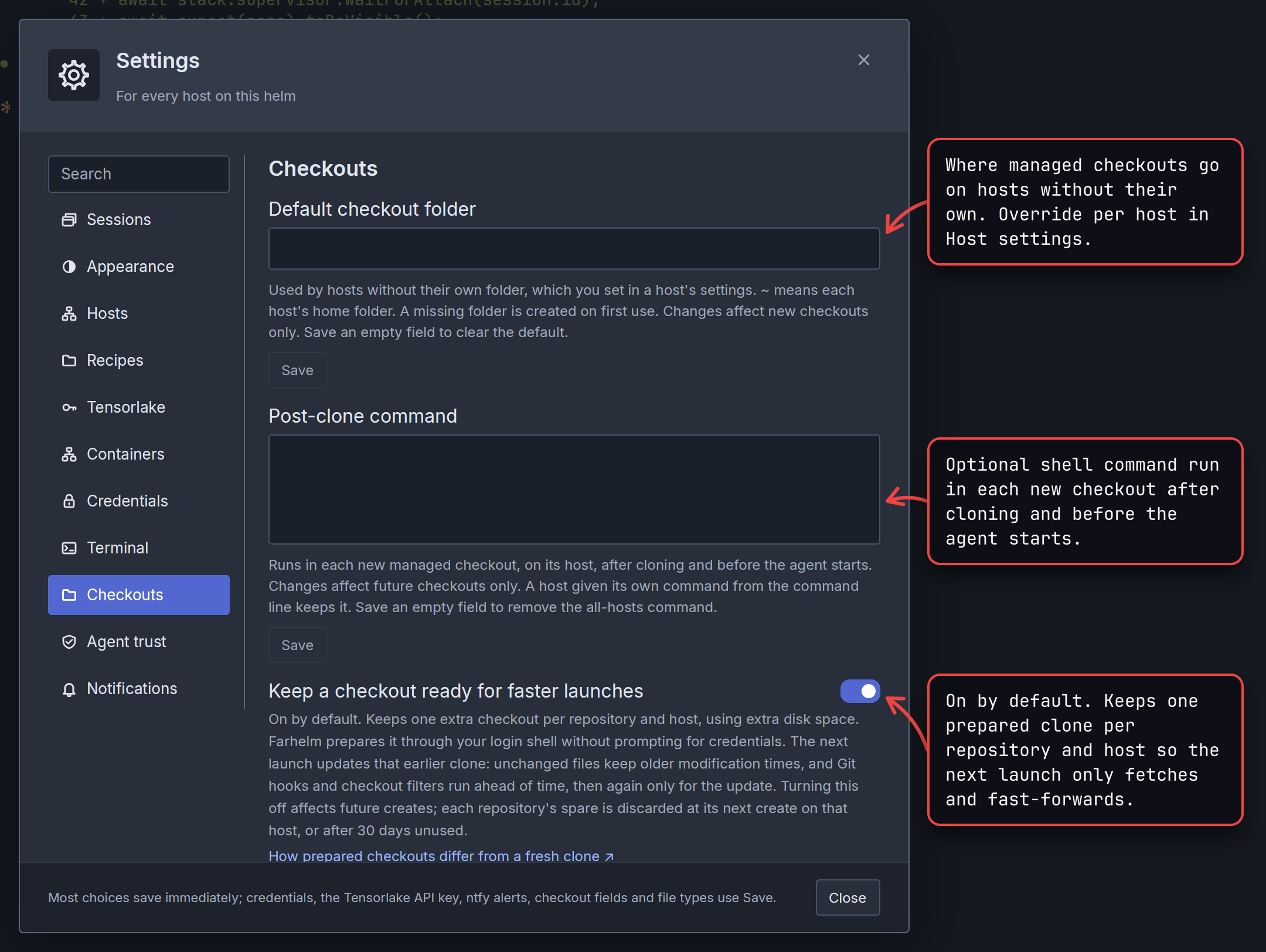
Configure managed checkouts in Settings → Checkouts (stored in your helm, the program that shows you every host's sessions):
- Default checkout folder: used by every host that does not have its own directory. There is no built-in default;
~expands to each host's home directory, and missing directories are created on first checkout. Save an empty field to clear the default. To override it for a single host, set Checkout folder in Host settings (Use default clears the override). Changing either setting affects future checkouts only. - Post-clone command: an optional shell command run inside each new managed checkout on its host after cloning (or updating a prepared checkout) and before the agent starts — for example, installing dependencies. Save an empty field to remove it.
You can also view or change these settings from a terminal with farhelm helm checkout-config (show, set-root, clear-root, set-post-clone, clear-post-clone). Add --host <id> to configure a single host, including setting a per-host post-clone command or an empty per-host command ("") to disable the all-hosts command on that host.
Archived checkouts live in Managed checkout trash, and any cleanup failure appears in the navigation rail's bell.
When a launch fails
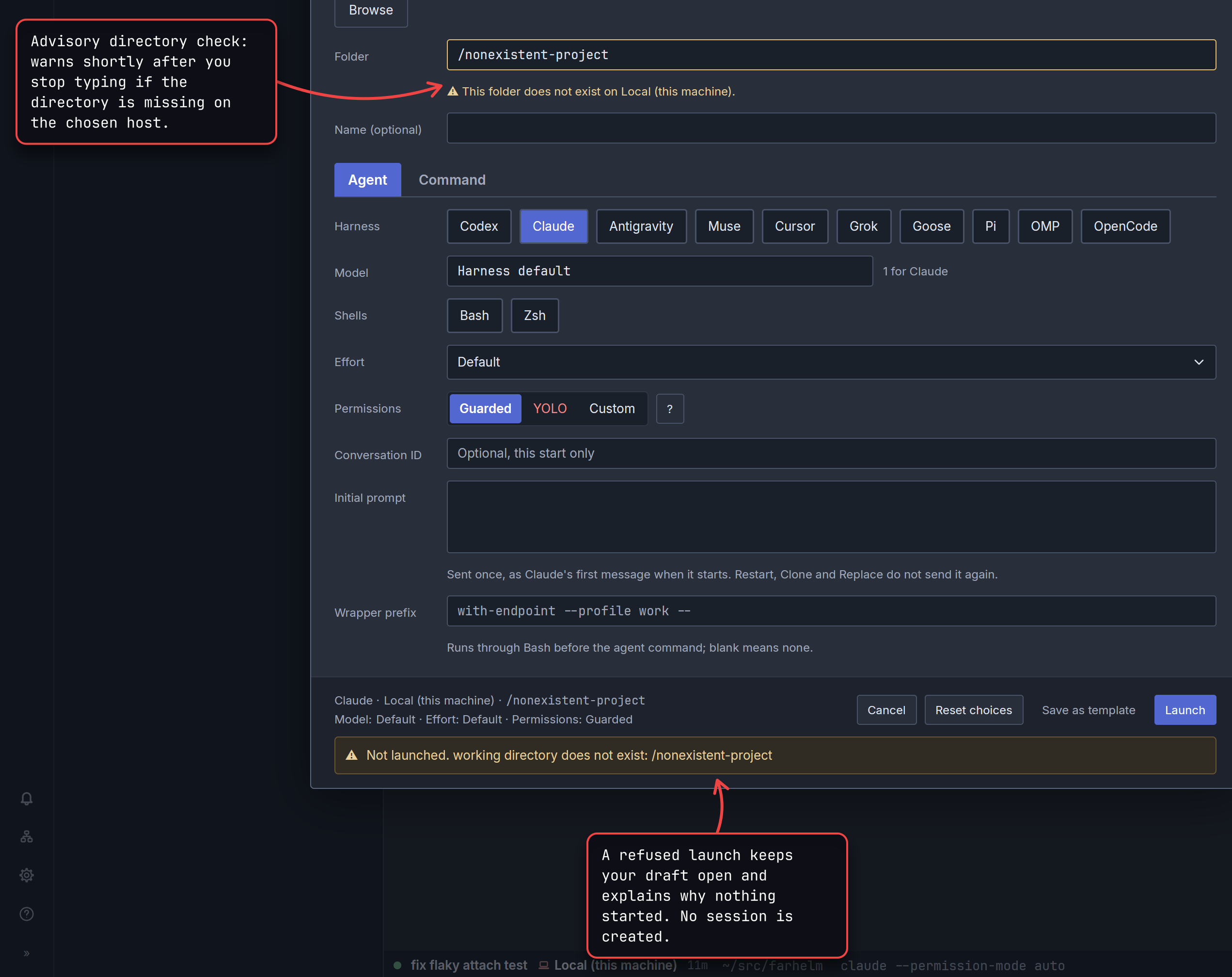
Launch problems split into two cases:
- Refused before a session is created: nothing appears in the session list. This happens when a directory does not exist or cannot be used, the chosen host is disconnected, a Tensorlake sandbox or container is suspended or stopped (resume it in Hosts first, then launch), a recipe has no built snapshot yet, a custom command or wrapper prefix is invalid, or a managed-checkout path was taken before you pressed Launch. The launcher stays open — or reopens with your draft if you had not moved on (otherwise a notice offers to reopen it) — with a Not launched. alert below Launch. A directory refusal also marks Folder and names the host.
- Failed after the session is created: the session appears in the session list so you can open its terminal and see what went wrong. Error means Farhelm could not start the program at all (for example, the agent is not on your login shell's
PATHon that host) or a managed checkout's clone or post-clone command failed. Exited means the program started and quit right away, with its exit code shown — for a Command launch or wrapped agent, a missing command prints Bash's error in the terminal and leaves the session Exited with code 127.
If starting a new sandbox session or container session fails before the session is created, Farhelm attempts to delete the new environment and shows Not launched. with the reason; any leftover stays listed in Hosts or Settings so you can remove it.
If the model catalog fails to load when the launcher opens, a Model catalog unavailable notice appears with a Retry button. You can still launch with Harness default or type an explicit model ID.
Next
- Launch templates covers saving setups under a name, combining them, and binding them to keyboard shortcuts.
- Read the session list covers tracking session statuses and managing trashed checkouts.
- Supported agents lists what each agent supports and any setup it needs on a host.